
1. Introduction – Get to Know Your vSeeBox Remote
Your vSeeBox remote is designed to make navigating your entertainment experience simple and convenient. From controlling your TV and adjusting the volume to searching with voice input and switching between apps, each button has a specific purpose.
Whether you're setting up your vSeeBox for the first time or simply want to learn more about its features, this guide will walk you through the remote control buttons and explain how to use them.
2. Understanding the Buttons on Your vSeeBox Remote
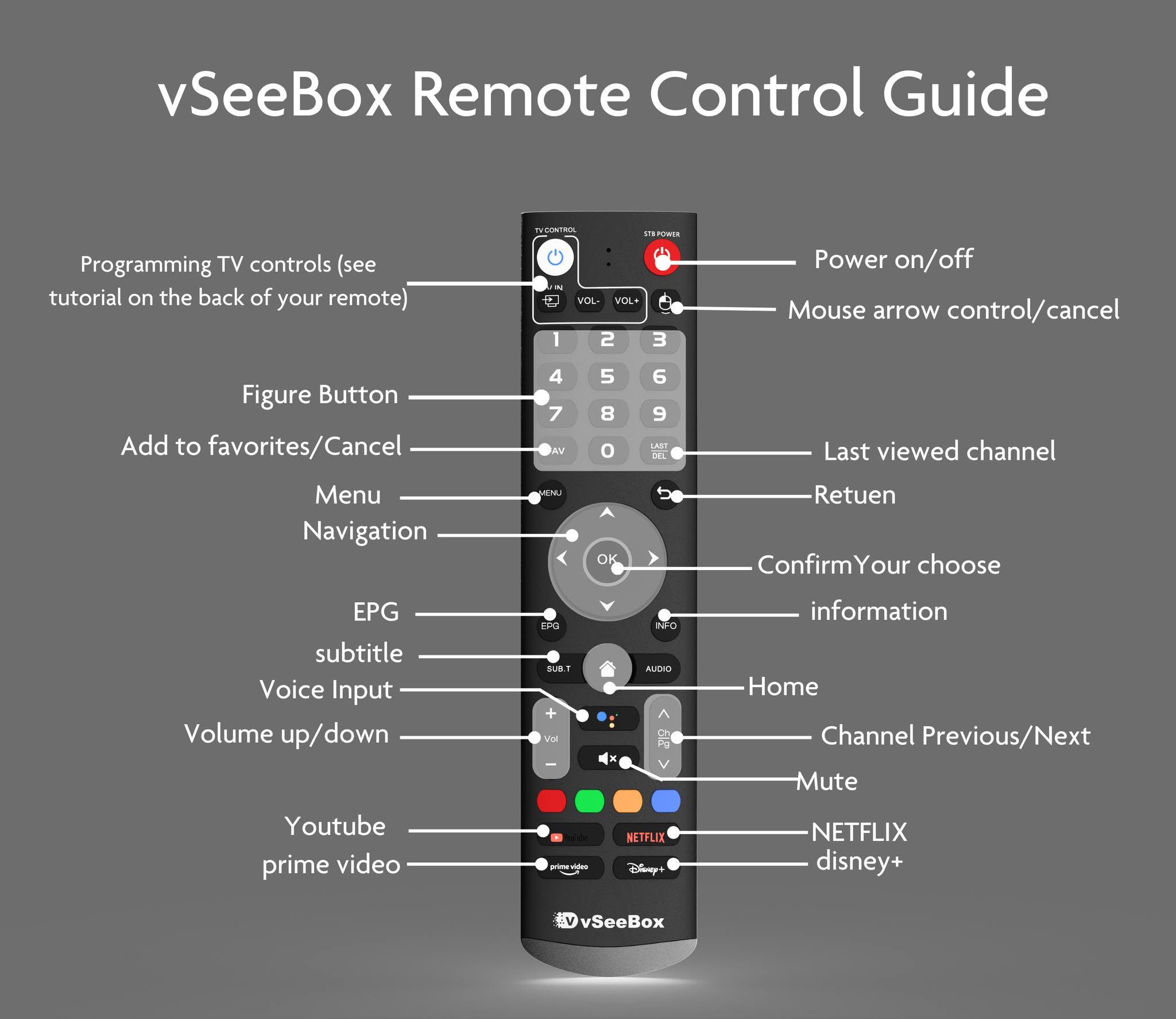
3. How to Program Your vSeeBox Remote to Control Your TV
1. Prepare your original TV remote.
2. Press and hold the **TV Control Power** button on your vSeeBox remote for 5 seconds until the blue light changes from blinking to solid.
3. Press the button you want to program: **Power, TV IN, VOL- or VOL+**. The blue light will begin blinking slowly.
4. Point the original TV remote toward the vSeeBox remote and press the corresponding button.
5. If successful, the blue light will flash three times. Repeat the process for the other buttons.
6. Press **OK** on your vSeeBox remote to finish programming.

4. How to Use Voice Input
1. Press and hold the Voice Input button.
2. Speak clearly into the remote.
3. Release the button when finished.
4. Follow the on-screen results.
5. Conclusion – Get the Most Out of Your vSeeBox Remote
Once you understand what each button does, using your vSeeBox becomes much easier. From everyday navigation to voice input and TV control, your remote puts many useful functions right at your fingertips.
Keep this guide handy whenever you need a quick reminder, and enjoy a more convenient entertainment experience with vSeeBox.
6. How to Turn Subtitles On or Off
1. Open the movie or video you want to watch.
2. Start playback.
3. Press OK or the Menu button to display the playback controls.
4. Look for the Subtitle or CC option.
5. Select your preferred subtitle language or choose Off to disable subtitles.
7. How to Use Mouse Mode
Mouse Mode can make navigating certain apps and menus easier, especially when you need to move a cursor rather than select items with the directional buttons.
To use it:
1. Press the Mouse Mode button on a compatible remote.
2. Use the navigation buttons or the supported cursor controls to move the pointer.
3. Press OK to select an item.
4. Press the Mouse Mode button again, if supported, to return to regular navigation.
Mouse Mode availability and operation may vary depending on your remote and software version.